Perform Scheduled Room Move from the Housekeeping Screen/Front Desk Menu

Stay is enhanced to allow users to perform scheduled room moves directly from the Housekeeping module or from the Front Desk menu. Previously, users had to access a reservation to perform scheduled room moves.

The Scheduled Room Moves option is removed from the Batch Operations screen and added as a separate option in the Front Desk menu. Users can continue to process the scheduled room moves in the Reservation screen as per the existing functionality.

Feature Setting

  • Name: Scheduled Room Move

  • Value: Must be Enabled

  • Comments: License is not required

Permission

The following permission is added that allows users to access the Scheduled Room Moves screen.

  • Stay_ScheduledRoomMoves

This permission is provided to all system-defined roles by default. This permission should be manually added to the users with custom roles.

To support this enhancement, the following changes have been made:

  • The Scheduled Room Moves option is removed from the Batch Operations screen and added as a separate option in the Front Desk menu (Front Desk Scheduled Room Moves).

  • A new permission, Stay_ScheduledRoomMoves is introduced to allow users to access the Scheduled Room Moves screen. The Scheduled Room Moves option in Front Desk and the hyperlink in the Housekeeping screen will be displayed only to users with this new permission.

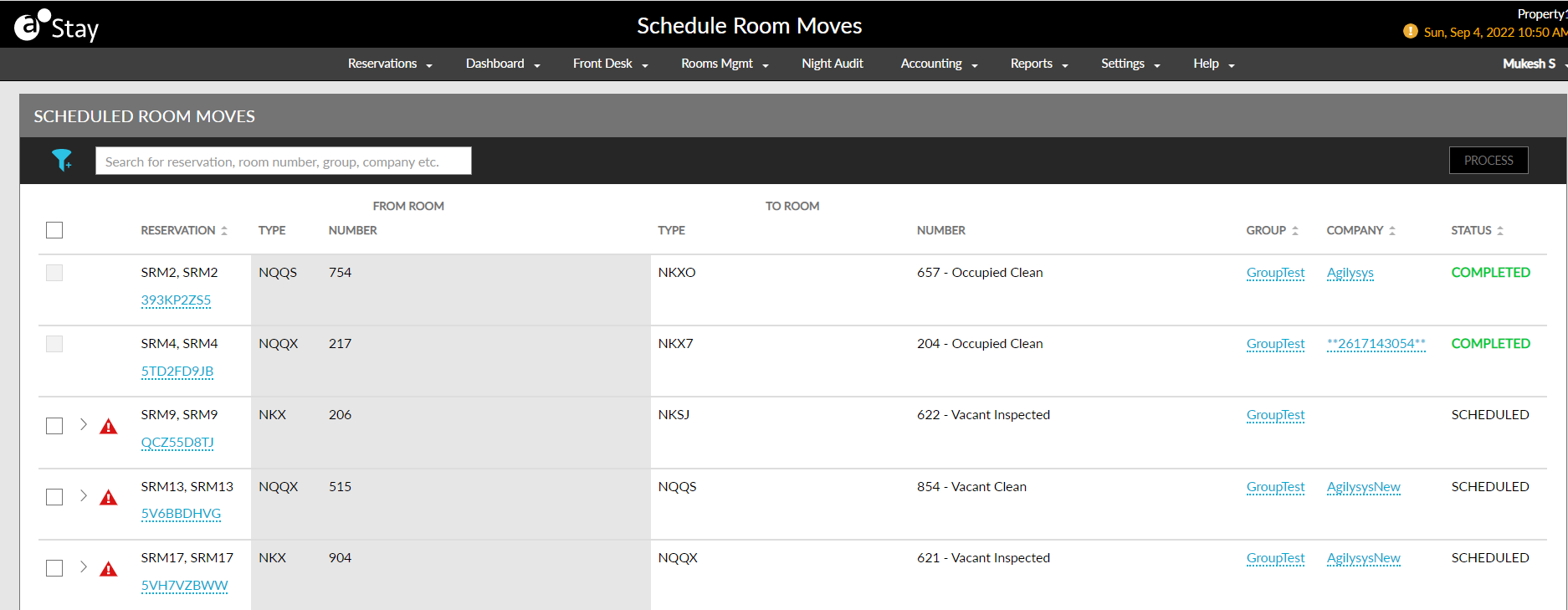
  • On clicking the Scheduled Room Moves option in Front Desk or the hyperlink in Housekeeping screen, the Scheduled Room Moves screen will be displayed. This screen displays the list of scheduled room moves that are scheduled for the current property date.

  • A Process button is added to the Scheduled Room Moves screen. When clicked, the scheduled room moves for the selected reservations is completed.

. A screenshot of a computer
Description automatically generated

  • The following columns are added to the Scheduled Room Moves screen which displays the details of the room moves:

  • Field

  • Description

  • Reservation

  • Displays the guest name, confirmation ID of the reservation (in hyperlink), and the VIP details and the loyalty programs associated with the reservations.

From Room

  • Type

  • The current room type in which the guest is residing.

  • Room Number

  • The current room number in which the guest is residing.

  • Upcoming Arrival

  • The reservation confirmation ID, guest name, ETA (if present) with priority indicator (if present), VIP details, and the loyalty program details of the guest who is going to occupy the room will be displayed. If there is no upcoming guest to the room for that day, the Upcoming Arrival column will not be displayed.

To Room

  • Type

  • The room type to which the guest is moving to.

  • Number

  • The room number to which the guest is moving to and the current housekeeping condition of that room.

  • Current Guest

  • Displays the following details:

  • The reservation confirmation ID, guest name, ETA (if present) with priority indicator (if present), VIP details, and the loyalty program details of the guest who is currently present in the room is displayed.

  • If the reservation has a late checkout time(LCO), ETD is compared with LCO and the longest time between them is displayed.

  • If ETD and LCO are the same, ETD is displayed.

  • If there is no guest in the room currently, the Current Guest column is not displayed.

Housekeeping Service Details

  • Displays the list of open service requests for the room to which the guest is moving to.

  • Service Type

  • The service name is displayed as a hyperlink. Users can click on the hyperlink to make updates to the service requests such as changing severity, service name, status.

  • Staff Assigned

  • Displays the name of the staff to which the service is assigned. The field is left blank if the staff is not assigned.

  • Group

  • If the reservation is part of a group, the group name is displayed as a hyperlink.

  • Company

  • If the reservation is part of a company, the name of the company is displayed as a hyperlink.

Status

  • Displays the following status of each scheduled room move.

  • Scheduled

  • This is the default status for all reservations that have scheduled room moves.

  • Completed

  • If the scheduled room move is successfully completed, the status is updated to completed. Scheduled room move will be successfully completed only if the destination room is in a housekeeping condition that is eligible for check in.

  • Failed

  • If Scheduled Room Move has failed, due to a network issue or if the housekeeping condition of the destination room is not eligible for check in, status will be updated to failed. This is a temporary status and the reservation is reverted to the Scheduled status once again. If the scheduled room move for a reservation has failed, an icon is displayed in front of the reservation with the message Destination room is not in check in eligible state.

  • Reservations can be searched using the following options:

    • Confirmation ID

    • Guest Name

    • Group

    • Company

    • Room Number

  • The reservations can be sorted using the following options:

    • Reservation

    • Group

    • Company

    • Status

    • Service Type

    • Status

    • Staff Assigned

  • When there are more than 25 records on a page, pagination is provided to help users navigate and view the other records.